Video Productivity & Learning
How to Search Inside a YouTube Channel: Practical Methods
Discover practical ways to search inside a YouTube channel: use the channel search bar, Google site: queries, captions and transcripts, or build a searchable archive with transcription and semantic search tools.
Answer up front: the fastest way to search inside a YouTube channel
If you need a quick answer: use YouTube’s channel search bar on desktop for a fast filter by title and description; if the phrase was spoken rather than written, import the video’s audio into a transcription tool to search the spoken text and jump to the exact moment. The rest of this article shows step-by-step methods, a reproducible workflow to build a searchable channel archive, and a troubleshooting checklist so you can find the moment you need without rewatching long videos.
Searching a channel works best when the videos already have text. This guide shows how to turn a YouTube video into text first.
Native YouTube channel search (desktop and what it finds)
On desktop, open the channel page and click the magnifying-glass icon in the channel header to search within that creator’s titles and descriptions. This native search is quick for finding videos that include your keywords in visible metadata, but it does not index spoken words inside the video. If the phrase was said but never added to the description or title, native search will miss it. Use this first for broad narrowing, then move to transcript-based methods for spoken content. Keep searches simple: try short noun phrases or a key verb plus noun to avoid unrelated matches generated by long queries.
Google advanced search: site: queries for channel-level results
If the channel uses an @handle or has a consistent URL structure, Google can be used to search a channel’s indexed pages. Use a site: query combined with quoted phrases to return videos where that phrase appears in the title, description, or auto-generated captions that Google indexed. For example, a query pattern looking like site:youtube.com/@channelhandle "your phrase" will surface matching pages. This method is useful when the YouTube channel search bar is missing or when you want to include Google’s indexing of captions. Note that results depend on whether Google has crawled and indexed the captions or description text for those videos.
Search spoken content with captions and transcripts
When the information was spoken, captions or transcripts are the only reliable source. Start by checking a video’s built-in captions (click the three dots under the video and select "Open transcript" where available). That transcript is timestamped and searchable in-page with your browser’s find function. If the captions are auto-generated and noisy, copy them into a plain text editor and search there. For larger work across many videos, export or build transcripts for all relevant videos so you can search across them as a corpus rather than one video at a time.
Build a searchable channel archive: step-by-step workflow
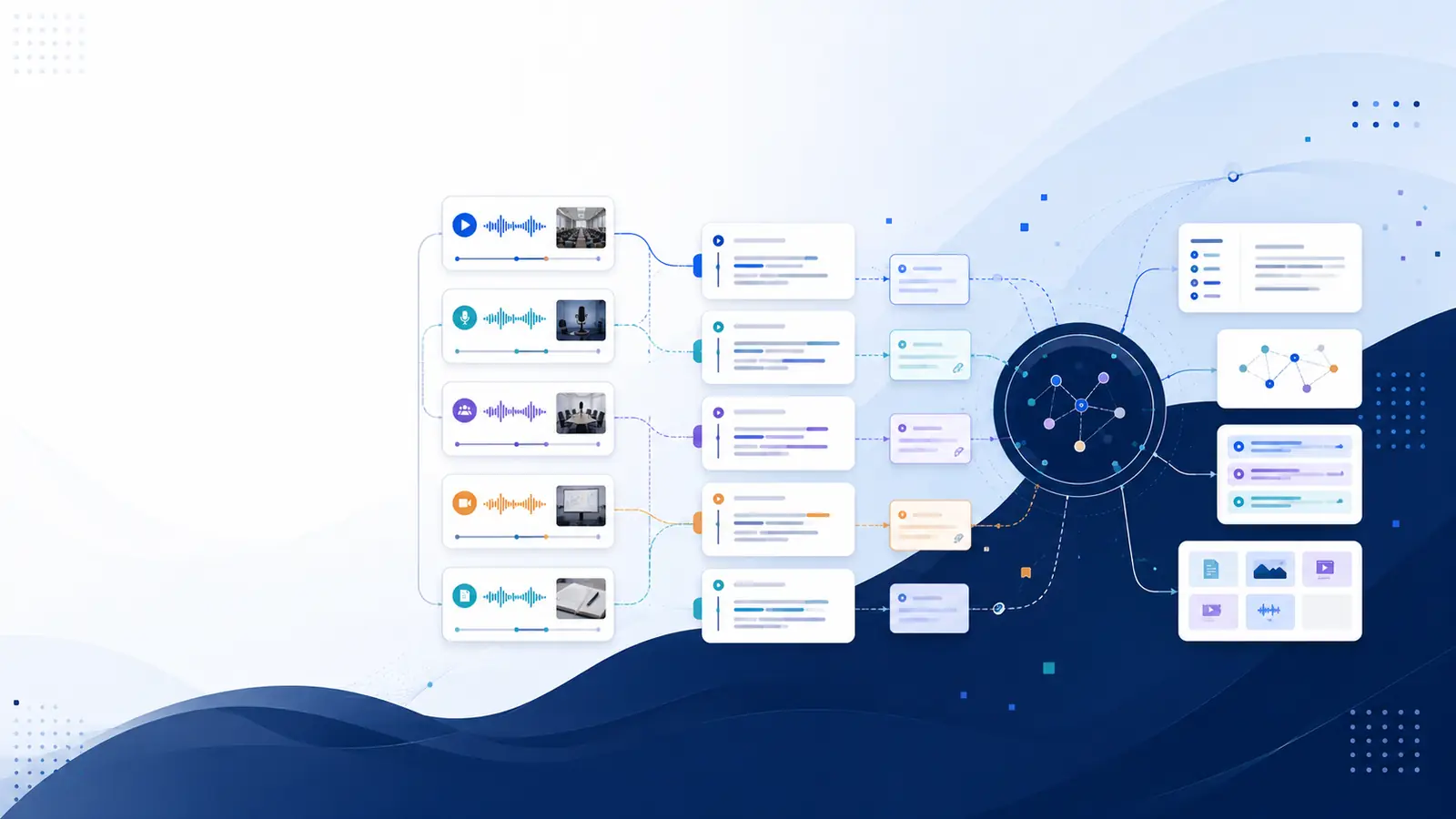
To search inside a whole channel quickly, follow a repeatable workflow: (1) collect the video URLs or subscribe to the channel so you have a list, (2) generate timestamped transcripts for each video, (3) index those transcripts in a local document search or a dedicated tool that supports semantic queries, and (4) use keyword and meaning-based search to jump to the exact timestamp. For automation, add new uploads to the archive automatically so future searches include the latest content. This workflow reduces time spent scrubbing and turns a channel into a referenceable knowledge base.
Using Libraryminds for deeper searches and exact moments
If you want spoken-word search across many videos, Libraryminds converts YouTube videos into searchable, structured knowledge by providing timestamped transcripts and semantic search across all transcripts. Libraryminds can import a YouTube URL and produce a timestamped transcript that links words to exact moments, and its semantic search finds meaning rather than just exact keywords. For subscribing to channels and auto-importing new uploads into your searchable library, see the YouTube channel subscriptions feature on the site, and try the free YouTube transcriber tool to test a single video without creating an account.
Practical example: find a quoted tip in a ten-video course
Collect the playlist URLs, import each video into a transcript tool, then run a semantic search for a plain-language question like "how to set daily goals". The tool will return matching transcript segments with timestamps so you can click directly to the relevant second. If you want automatic updates when the instructor posts new lessons, subscribe to the channel inside the tool so new uploads queue and become searchable immediately.
Troubleshooting and a quick checklist
If a search returns no results, run this checklist: verify the channel handle or URL; confirm the video is public (unlisted and private are not accessible for indexing); check that captions or transcripts exist or generate them; ensure transcripts are complete and accurate enough to contain the phrase; and, if using an external tool, confirm the video was processed fully. If transcripts are inaccurate due to noise or accents, review the timestamped transcript against the video before relying on the extracted text.
Frequently asked questions
How do I search spoken words that aren’t in the description?
Export or generate transcripts for those videos and search the transcript text. A timestamped transcript points to the exact second where the phrase was spoken, letting you jump to that moment without manual scrubbing.
Can I automate searching new uploads from a channel?
Yes. Subscribe to a channel inside a transcription tool that supports channel subscriptions to queue new uploads for transcription automatically, making each new video searchable as soon as it’s processed.
Are auto-generated captions good enough for precise searches?
Auto-captions can be sufficient for common phrases but may struggle with technical vocabulary, accents, or overlapping speakers. Always verify important excerpts against the video using the transcript’s timestamps.
Which tool can find meaning, not just keywords?
Tools with semantic search can find moments described in plain language rather than relying on exact keywords; these systems convert queries into meaning-based matches so you can search for ideas rather than exact phrases.
Where can I try transcribing a YouTube video for free?
Use the free YouTube transcriber tool to generate a transcript from a public video URL without creating an account, or explore the platform’s features page to learn about building a searchable video library.
Helpful next steps: try the free YouTube transcriber tool at the free YouTube transcriber, read about the service’s channel automation on the YouTube channel subscriptions page, and review the full feature list on the features page to plan a searchable archive for one or more channels.