YouTube
How to Transcribe YouTube Videos Automatically: A Step-by-Step Guide
Learn how to automatically transcribe YouTube videos with this comprehensive guide. Discover powerful skills to extract spoken words for review, repurposing, or better understanding.
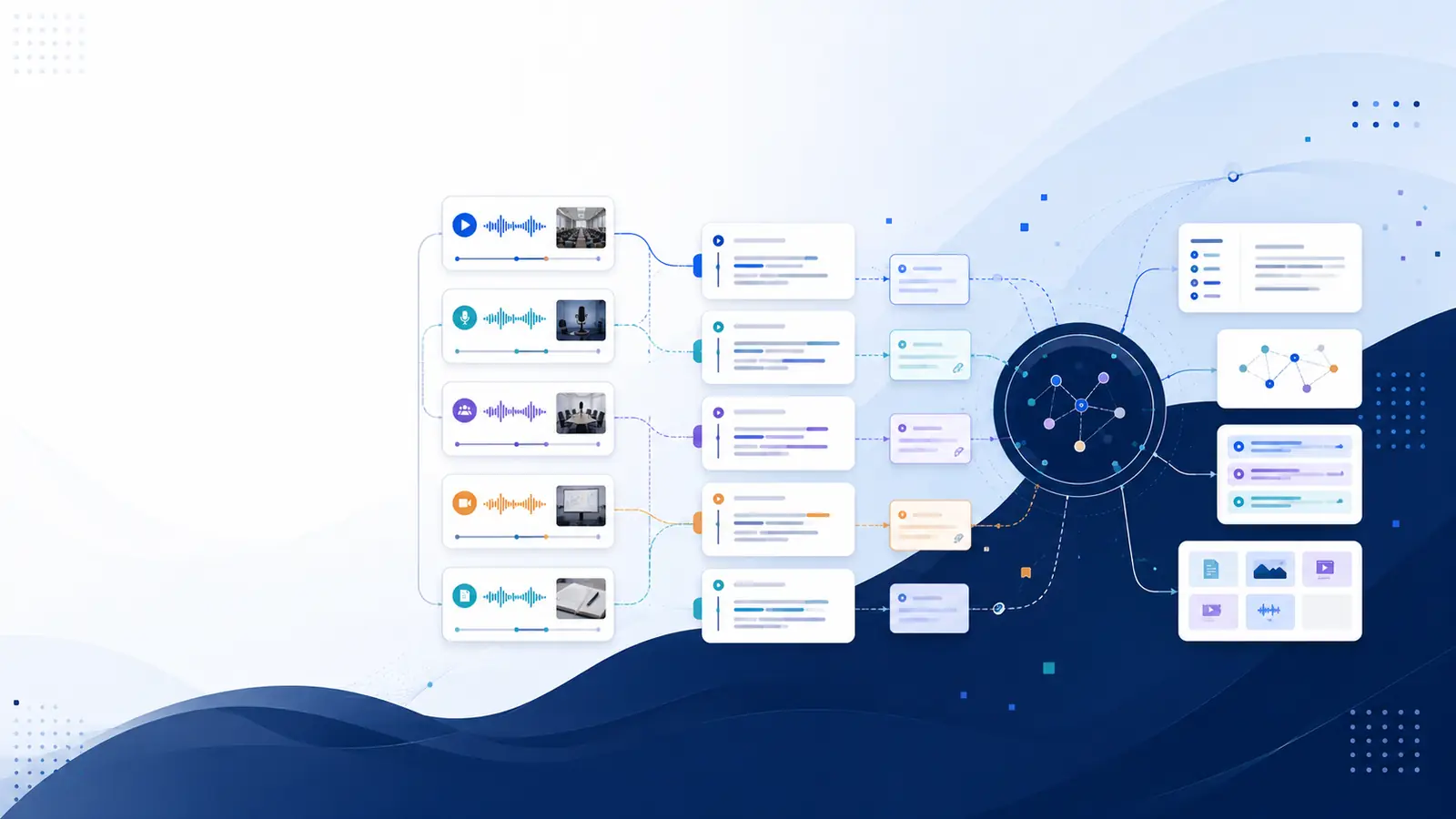
Do you frequently consume YouTube content and wish you could easily extract the spoken words for review, repurposing, or better understanding? Learning how to automatically transcribe YouTube videos is a powerful skill that unlocks a wealth of opportunities. This guide will walk you through the most efficient and accurate methods to automatically transcribe YouTube videos, even without relying on YouTube's built-in captions, ensuring you get high-quality text from any video.
In a world overflowing with video content, the ability to convert spoken words into text is invaluable. Whether you're a student trying to capture lecture notes, a content creator aiming to repurpose your videos, a researcher analyzing interviews, or simply someone who learns better by reading, automatic transcription software offers a robust solution. We'll explore various tools and techniques to help you effortlessly convert YouTube video to text, making your video content more accessible, searchable, and usable.
Why Transcribe YouTube Videos? Benefits and Use Cases
Transcribing YouTube videos isn't just about converting audio into text; it's about unlocking the full potential of video content. There are numerous compelling reasons and practical applications for having a text version of your favorite YouTube videos.
Enhanced Accessibility and Inclusivity
- For Hard-of-Hearing or Deaf Audiences: Transcripts and captions are crucial for making video content accessible to individuals who are deaf or hard of hearing. Providing accurate text ensures everyone can engage with your message.
- For Non-Native Speakers: Viewers watching videos in a non-native language can greatly benefit from a written transcript. It allows them to follow along at their own pace, look up unfamiliar words, and improve language comprehension.
- Learning and Comprehension: Many people are visual learners or prefer to read rather than listen. A transcript allows them to read, highlight, and make notes, reinforcing their learning experience.
Boost Your Content's SEO (Search Engine Optimization)
Search engines like Google cannot "watch" videos, but they can certainly read text. When you transcribe YouTube videos, you provide search engines with a textual version of your video's content, significantly improving its discoverability.
- Improved Search Rankings: By including a transcript as part of your video description, blog post, or website, you give search engines more keyword-rich content to index. This means your video is more likely to appear in search results for relevant queries.
- Long-Tail Keyword Opportunities: Spoken language often contains natural, long-tail keywords that might not be explicitly included in your video title or description. Transcripts capture these, drawing in highly specific search traffic.
- Increased Watch Time: When viewers find your content more easily through search, they are more likely to click and watch, contributing to higher engagement and watch time, which YouTube's algorithm favors.
Effortless Content Repurposing and Creation
A video transcript is a goldmine for content creators looking to maximize their output and reach diverse audiences across multiple platforms. Think of it as a blueprint for new content.
- Blog Posts and Articles: Easily convert YouTube video to text and transform your video's dialogue into a detailed blog post or article. You've already done the research and spoken the content; now it's just a matter of refining it for a written format.
- Social Media Content: Extract compelling quotes, key takeaways, or interesting facts from your transcript to create engaging social media posts, stories, or short video captions.
- Ebooks and Whitepapers: Compile several related video transcripts into a more extensive, in-depth resource like an ebook or whitepaper, offering even more value to your audience.
- Show Notes for Podcasts: If your YouTube video is also a podcast, the transcript provides an instant foundation for detailed show notes, including timestamps for easy navigation.
- Presentations and Speeches: Use the transcript as a ready-made script or outline for future presentations, webinars, or speaking engagements.
- New Video Scripts: A high-quality YouTube video to script conversion can serve as the basis for a new video, allowing you to refine your message and structure before filming.
Enhanced Research and Learning
For students, researchers, and anyone engaged in deep learning, transcripts offer an unparalleled advantage.
- Searchable Knowledge Base: Imagine being able to search through all your lecture recordings or research interviews for specific keywords or concepts. Tools that transcribe audio from YouTube allow you to create a semantic, searchable library of knowledge. This is particularly useful with platforms like Libraryminds, which offers semantic search across all your transcripts, helping you find any moment by describing it in plain English.
- Efficient Note-Taking: Instead of furiously scribbling during a lecture or webinar, you can focus on listening, knowing that a full transcript will be available for you to highlight, annotate, and summarize later.
- Quote Extraction: Quickly pull out precise quotes for academic papers, articles, or presentations without needing to re-listen to entire sections of a video.
By leveraging tools that convert YouTube video to text, you transform ephemeral video content into a tangible, versatile asset. This strategic move benefits your audience, your content's reach, and your personal productivity.
Understanding YouTube's Built-in Caption Feature (and its Limitations)
YouTube offers an automatic captioning feature that can generate subtitles for many videos. This is a convenient, free option, and it's often the first thing people consider when they want to get text from YouTube video. However, while useful, it comes with significant limitations.
How YouTube's Automatic Captions Work
When a video is uploaded to YouTube, its system uses speech recognition technology to analyze the audio and generate captions. You can usually access these by clicking the "CC" (Closed Captions) button in the video player and selecting "English (auto-generated)" or a similar option.
Advantages of YouTube's Auto-Captions
- Free and Automatic: The biggest advantage is that they are automatically generated and completely free to use. No manual effort or subscription required.
- Quick Availability: For many videos, these captions are available shortly after upload.
- Basic Accessibility: They provide a baseline level of accessibility for viewers, which is better than no captions at all.
Limitations and Downsides
Despite their convenience, YouTube's auto-generated captions are far from perfect, especially if you need a high-quality, accurate transcript for professional use or deep analysis. They often fall short in several key areas:
- Accuracy Issues:
- Background Noise: Any background music, ambient sounds, or overlapping speech can significantly degrade accuracy.
- Accents and Dialects: Strong accents or less common dialects are often misinterpreted.
- Technical Jargon: Specialized terminology, scientific terms, or niche vocabulary are frequently mistranscribed.
- Mumbling or Low Audio Quality: If the speaker is unclear or the audio quality is poor, the captions will suffer.
- Lack of Punctuation and Formatting: Auto-generated captions often lack proper punctuation (commas, periods, question marks), capitalization, and paragraph breaks. This makes the text difficult to read, understand, and use as a direct transcript.
- No Speaker Identification: If there are multiple speakers in a video, YouTube's captions typically don't differentiate between them. You won't know "who said what," which is crucial for interviews, discussions, or podcasts.
- Timestamps Can Be Inaccurate: While they have timestamps, these can sometimes be slightly off, making it harder to sync the text perfectly with the video.
- Editing Limitations: While video creators can edit their own auto-generated captions, viewers cannot easily download or edit them directly from YouTube for their own purposes without using third-party tools.
- Inability to Handle Multiple Languages Seamlessly: While YouTube offers auto-translation, the initial auto-generated captions are for the primary language detected, and the translations can be even less accurate.
Beyond these native constraints, users often turn to browser extensions or specialized tools to extract text more effectively. Some browser add-ons allow viewers to pull conversation logs directly from the player and arrange them into a structured timeline. While native YouTube tools prioritize immediate accessibility for the general public, dedicated transcription services typically offer more control over formatting, speaker diarization, and export options, which can be helpful for those who need to organize or analyze video content for research or professional documentation.
For creators who manage their own content, the platform also provides a manual editing interface within the video details section. This allows for the correction of errors introduced by the automated system, though the process is time-intensive and requires manual intervention for every segment. Choosing between native tools and external services often involves a trade-off between the convenience of an integrated, free solution and the precision or structural organization required for specific professional tasks.
In summary, YouTube's built-in captions serve as a quick, basic solution for immediate viewing, but for anyone needing reliable, editable, and well-formatted text from a video, relying solely on them is insufficient. This is where dedicated automatic transcription software and online video transcriber services become essential.
Sources reviewed: insideartsci.washu.edu, microsoftedge.microsoft.com.
Top Automatic Transcription Tools for YouTube Videos (Free & Paid Options)
When YouTube's auto-captions don't meet your needs, a range of specialized tools and services step in to offer superior accuracy, features, and flexibility. These solutions leverage advanced AI video transcription technology to provide reliable text output. Here’s a breakdown of options, from free methods to professional services.
Free YouTube Transcription Options (with caveats)
While truly "free" and high-quality automatic transcription is rare, some options offer limited free usage or require manual effort:
- Manual Transcription (Yourself): This is the most accurate but also the most time-consuming. You listen to the video and type out every word. Tools like VLC Media Player allow you to slow down playback, which can help.
- Google Docs Voice Typing:
- How it works: Open a Google Docs document, go to Tools > Voice typing. Play your YouTube video through your computer's speakers (or better yet, use a virtual audio cable to route the audio directly to Google Docs if your system supports it) and let Voice Typing capture the speech.
- Pros: Completely free, relatively good accuracy for clear audio.
- Cons: Requires real-time playback, no automatic punctuation, no speaker differentiation, no timestamps, tedious to edit and format. Not a true YouTube caption generator.
- Limited Free Trials/Minutes: Many professional transcription services offer a small number of free minutes (e.g., 10-30 minutes) as a trial. This can be useful for short videos or to test the service's quality before committing.
- Browser Extensions (Basic): Some browser extensions claim to extract YouTube captions, but they often just pull YouTube's auto-generated captions, inheriting all their inaccuracies.
Paid & Professional Automatic Transcription Services for YouTube
For serious users, content creators, researchers, or anyone needing high accuracy and advanced features, dedicated automatic transcription software is the way to go. These services often provide a much cleaner, more accurate, and more functional transcript than free alternatives.
Key Features to Look for in a YouTube Video Transcriber:
- High Accuracy: Leveraging advanced AI and machine learning for better speech-to-text conversion.
- Speaker Diarization: Automatically identifying and labeling different speakers.
- Timestamping: Linking every word or phrase to its exact moment in the video.
- Export Formats: Support for various formats like TXT, SRT, VTT, DOCX.
- In-built Editor: An easy-to-use interface to review and correct transcripts.
- Language Support: Ability to transcribe in multiple languages.
- Direct YouTube URL Integration: Simply paste a YouTube link to get a transcript.
- Additional AI Features: Summarization, semantic search, chapter generation.
Leading Automatic Transcription Services:
Many services exist, each with its strengths. Here's how to consider them and where platforms like Libraryminds stand out:
Example: Libraryminds
Libraryminds is an excellent example of an AI-powered platform designed to transcribe YouTube videos efficiently and accurately. It offers a comprehensive suite of features that go beyond simple transcription, turning your video content into structured, searchable knowledge.
- AI-Powered Transcription: Libraryminds uses an advanced multi-provider AI cascade (Deepgram Nova-2, Google Cloud STT, AWS Transcribe, OpenAI Whisper) to ensure high accuracy and reliability. This means you're getting some of the best available speech to text YouTube technology.
- Direct YouTube Integration: You can simply paste a YouTube URL directly into the platform to get a transcript, making it incredibly user-friendly. This is a core feature for any aspiring YouTube caption generator.
- Timestamped Transcripts: Every word is linked to its exact moment in the recording, allowing for precise navigation and editing.
- Speaker Diarization: For videos with multiple speakers, Libraryminds labels who said what, making meeting notes or interview analyses much clearer.
- Semantic Search: Beyond keyword search, Libraryminds allows you to find any moment in your transcripts by describing it in plain English, transforming your content into a truly intelligent knowledge base. This significantly enhances how you can utilize the text you get from YouTube video.
- AI Summaries & Chapters: Automatically generate summaries and YouTube chapters, saving you significant time in content creation and review.
- Export Options: Download your transcripts in popular formats like TXT, SRT, and VTT, ready for use as subtitles, blog content, or further analysis.
- Knowledge Management: Libraryminds treats your transcripts as part of a personal knowledge library, offering features like flashcard generation, "Ask My Library" for Q&A, and knowledge decay tracking.
Other services generally fall into similar categories, offering varying levels of accuracy, pricing, and features. When choosing, consider your budget, the volume of videos you need to transcribe, and the specific features (like speaker diarization or advanced export options) that are critical for your workflow.
To help you compare, here's a general table outlining what to expect from different types of transcription tools:
| Feature | YouTube Auto-Captions | Google Docs Voice Typing | Dedicated AI Transcribers (e.g., Libraryminds) |
|---|---|---|---|
| Accuracy | Low to Medium (highly variable) | Medium to High (clear audio) | High (advanced AI, multi-engine support) |
| Cost | Free | Free | Paid (often tiered pricing, free trials) |
| Speaker Diarization | No | No | Yes (often a premium feature) |
| Timestamps | Basic (often inaccurate) | No | Yes (word-level, highly accurate) |
| Punctuation/Formatting | Minimal/Poor | Manual | Automatic & Editable |
| Export Formats | Limited (requires third-party tools) | Copy/Paste (TXT, DOCX) | TXT, SRT, VTT, DOCX, etc. |
| Direct YouTube URL Input | N/A (built-in) | No (real-time playback) | Yes |
| Additional AI Features | No | No | Summaries, Chapters, Semantic Search |
| Editing Interface | Basic (for creators) | Standard text editor | Advanced, timestamped editor |
For individuals and businesses serious about leveraging video content, investing in a robust best transcription services for YouTube is a decision that pays dividends in efficiency, accuracy, and versatility. You can View Libraryminds pricing plans to see how an integrated platform can fit your needs.
Step-by-Step Guide: Using Online Transcribers
Want every method in one place, including captions, AI transcription and developer tools? Read our full guide on how to convert a YouTube video to text.
Using an online video transcriber to convert YouTube video to text is generally straightforward. While specific interfaces may vary, the core process remains similar across most dedicated services. Here’s a step-by-step guide to help you efficiently transcribe audio from YouTube.
Step 1: Obtain the YouTube Video URL
First, you need the link to the YouTube video you wish to transcribe.
- Navigate to the YouTube video in your web browser.
- Copy the URL from the address bar (e.g.,
https://www.youtube.com/watch?v=dQw4w9WgXcQ). You can also click the "Share" button below the video and copy the provided link.
Step 2: Choose Your Automatic Transcription Software
Select a reputable automatic transcription software. For this guide, we'll use a general approach that aligns with platforms like Libraryminds, known for its direct YouTube transcription capabilities.
If you haven't already, sign up for an account. Many services offer a free YouTube transcription trial for a limited number of minutes, allowing you to test their accuracy.
Step 3: Upload or Paste the YouTube URL
Most advanced transcription services offer a direct YouTube integration:
- Log into your chosen transcription platform.
- Look for an option like "Transcribe Video," "Upload File," "Import from YouTube," or "Paste URL."
- Paste the YouTube video URL you copied in Step 1 into the designated field. The system will usually fetch the video details automatically.
- Some services might also allow you to upload video files directly if you've already downloaded them, but pasting the URL is typically the most efficient method for YouTube content.
Step 4: Select Language and Other Settings
Before initiating transcription, you'll often have a few options to configure:
- Source Language: Crucially, select the language spoken in the video. Accurate language selection is vital for optimal transcription quality. Many services support 50+ languages.
- Speaker Identification (Diarization): If available, enable speaker diarization if your video has multiple speakers and you want to know "who said what."
- Output Format: While you'll choose the final export format later, some tools might ask for a preference upfront.
Step 5: Initiate Transcription
Once you've configured your settings, click the "Transcribe," "Start," or "Process" button. The service will then use its AI video transcription engine to convert the audio into text.
- Processing time varies depending on the video length, the service's current load, and the complexity of the audio. Short videos (a few minutes) might be transcribed in minutes, while longer ones could take longer.
- You'll often receive an email notification once your transcript is ready.
Step 6: Review and Edit the Transcript
Even with the best AI, no automatic transcription is 100% perfect. This step is crucial for ensuring accuracy and readability.
- Access the Editor: Most services provide an in-browser editor. This editor typically shows the transcript alongside the video or audio playback, with timestamps for each word or phrase.
- Play and Correct: Play the video or audio within the editor. As the media plays, the corresponding text will highlight, allowing you to easily identify and correct any errors in spelling, punctuation, or speaker attribution.
- Add Punctuation and Formatting: Add commas, periods, question marks, and paragraph breaks to make the text flow naturally. Correct capitalization where needed.
- Identify Speakers: If speaker diarization was enabled, verify the labels. If not, manually add speaker names (e.g., "Speaker 1:", "Interviewer:", "Guest:") to clarify dialogue.
Step 7: Download Your Transcript
Once you're satisfied with the accuracy of your transcript, it's time to download it.
- Look for a "Download," "Export," or "Save" button.
- You'll typically be given several format options:
- TXT (Plain Text): Ideal for copying and pasting into documents, blog posts, or for simple textual analysis.
- SRT (SubRip Subtitle): The most common format for subtitles, including time codes for perfect synchronization with video players.
- VTT (Web Video Text Tracks): Similar to SRT, often used for HTML5 video players and offering more formatting options.
- DOCX (Microsoft Word Document): For more advanced formatting or collaborative editing.
By following these steps, you can effectively use an online video transcriber to get text from YouTube video, converting raw audio into a polished, usable transcript. For more detailed insights into specific tools, you might find How to Transcribe YouTube Videos with Timestamps (Free & Fast) helpful.
Advanced Tips for Improving Transcription Accuracy
While automatic transcription software has become incredibly sophisticated, its performance is highly dependent on the quality of the input audio. By applying a few advanced techniques, you can significantly enhance the accuracy of your speech to text YouTube conversions, minimizing the need for extensive manual editing.
1. Optimize Audio Quality Before Transcription
The clearer the audio, the better the transcript. If you have control over the original video recording (e.g., it's your own content), prioritize these practices:
- Use a High-Quality Microphone: This is fundamental. A good microphone reduces background noise and captures voices clearly.
- Minimize Background Noise: Record in a quiet environment. Avoid places with music, chatter, traffic, or echo.
- Speak Clearly and Articulately: Encourage speakers to enunciate, speak at a moderate pace, and avoid mumbling.
- Avoid Overlapping Speech: If possible, have speakers take turns. Overlapping dialogue is one of the biggest challenges for AI transcription.
- Maintain Consistent Volume: Keep microphone levels consistent for all speakers.
If you're working with existing YouTube videos and cannot control the original recording, consider using audio editing software (like Audacity or Adobe Audition) to:
- Reduce Noise: Apply noise reduction filters to diminish static, hums, or other consistent background sounds.
- Normalize Volume: Even out volume fluctuations to ensure all speech is at a listenable level.
- Remove Pauses/Silence: Trim unnecessary silences to make the audio more compact and potentially faster to process for some services.
2. Choose the Right Transcription Tool for Your Needs
Not all online video transcriber tools are created equal. The quality of their AI engine makes a huge difference.
- Look for Multi-Engine AI: Platforms that use a cascade of different AI providers (like Libraryminds' use of Deepgram Nova-2, Google Cloud STT, AWS Transcribe, and OpenAI Whisper) often yield superior results. If one engine struggles with a particular segment, another might excel, leading to higher overall accuracy.
- Language-Specific Models: Ensure the service supports and has robust models for the specific language(s) spoken in your video.
- Specialized Features: If your video has multiple speakers, prioritize tools with strong speaker diarization. If it contains technical jargon, look for services known for higher accuracy in specialized domains (though this is still an area of development for most AIs).
3. Provide Context and Glossaries (If Supported)
Some advanced transcription services allow you to "train" their AI or provide additional context:
- Custom Dictionaries/Glossaries: If your video uses specific names, technical terms, or brand names that might be unfamiliar to a general AI model, some services allow you to upload a glossary of these terms. This significantly improves the recognition of niche vocabulary.
- Speaker Profiles: For recurring speakers, some platforms enable you to create speaker profiles to help the AI better identify and differentiate voices.
4. Select the Correct Language
This seems obvious, but it's often overlooked. Always double-check that you've selected the correct spoken language for transcription. Transcribing a Spanish video with an English model will result in incomprehensible gibberish.
5. Manual Review and Editing Remains Key
Even with all the above optimizations, human review is essential for 100% accuracy, especially for critical documents.
- Allocate Time for Editing: Factor in time for editing. While AI dramatically reduces the initial typing effort, a final polish by a human eye and ear is indispensable.
- Use the In-Built Editor: Most professional services offer an interactive editor that syncs text with audio/video, making corrections far more efficient than editing in a plain text file.
- Focus on Punctuation and Speaker Labels: These are common areas where AI can struggle. Pay close attention to inserting correct punctuation and verifying speaker attribution.
By combining pristine audio input with a high-quality YouTube caption generator or best transcription services for YouTube and diligent human review, you can achieve remarkably accurate transcripts, transforming your video content into a powerful textual asset. For more on utilizing your transcripts for various purposes, including learning and content creation, consider reading How to Learn From YouTube Videos Without Watching Them Again.
How to Download and Edit Your YouTube Video Transcripts
Once your YouTube video has been automatically transcribed, the next crucial steps involve downloading the transcript in the appropriate format and refining it to perfection. This ensures your YouTube video to script conversion is truly ready for its intended purpose.
Downloading Your Transcript
After the transcription process is complete and you've done an initial review, you'll want to export your transcript. Most automatic transcription software and online video transcriber platforms offer various export formats, each serving a different use case.
Common export options typically include:
- TXT (Plain Text):
- Purpose: This is the simplest format, containing only the spoken words, often with basic paragraph breaks and punctuation.
- Best for: Copying and pasting into blog posts, articles, emails, or for basic content analysis where formatting isn't critical. It's the go-to if you just need the raw text to get text from YouTube video.
- SRT (SubRip Subtitle):
- Purpose: The most widely used format for video subtitles. SRT files include precise timestamps, subtitle numbers, and the corresponding text.
- Best for: Uploading as subtitles to YouTube or other video platforms, ensuring perfect synchronization with your video. Essential for creating a YouTube caption generator output.
- VTT (Web Video Text Tracks):
- Purpose: Similar to SRT but with more advanced formatting options (like text positioning, color, and italics). It's designed for use with HTML5 video players.
- Best for: Advanced web-based video captioning, offering greater control over how subtitles appear.
- DOCX (Microsoft Word Document):
- Purpose: A formatted document that can include speaker labels, timestamps, and other stylistic elements.
- Best for: Professional documents, collaborative editing, or when you need a well-structured text version of your video.
- PDF:
- Purpose: A non-editable, static version of your transcript, useful for sharing or archival.
- Best for: Distributing a final, unalterable version of the transcript to others.
How to Download: Locate the "Export," "Download," or "Share" button within your transcription platform's interface. Select your desired format and click to download the file to your computer.
Editing Your Transcripts for Perfection
Even the most advanced AI video transcription services require some level of human review and editing to achieve 100% accuracy and ensure the text flows naturally. This is where you transform a good transcript into a great one.
Most professional services provide an intuitive in-browser editor designed specifically for this task:
- Interactive Playback: The editor typically features a video or audio player integrated directly. As you play the media, the corresponding text in the transcript highlights, making it easy to identify discrepancies.
- Click-to-Edit Functionality: You can often click on any word in the transcript to jump to that exact moment in the video, allowing you to quickly verify spoken words and make corrections.
- Punctuation and Capitalization: Automatically generated transcripts may sometimes miss correct punctuation or capitalization. Carefully review and add commas, periods, question marks, and ensure proper nouns are capitalized.
- Speaker Labels: If your video has multiple speakers, verify that the speaker diarization is correct. If the tool didn't identify speakers, manually add labels (e.g., "John:", "Interviewer:", "Narrator:") to clarify who is speaking.
- Grammar and Word Choice: While AI is good at recognizing words, it might not always capture nuanced grammar or context. Correct any grammatical errors or awkward phrasing to improve readability.
- Remove Filler Words: Decide if you want to remove common filler words like "um," "uh," "you know," or repetitions. For a clean, professional transcript, removing these often improves readability.
- Formatting and Paragraph Breaks: Break up long blocks of text into smaller, digestible paragraphs. This makes the transcript much easier to read and scan.
- Timestamps: Ensure the timestamps are accurate. Some editors allow you to adjust timestamps if they are slightly off, which is crucial for perfect subtitle synchronization.
By diligently editing your transcripts, you elevate them from raw AI output to polished, professional documents ready for any purpose. This attention to detail transforms a simple YouTube subtitle extractor into a powerful content creation tool. For a deeper dive into the methods, refer to How to Transcribe YouTube Video to Text: 3 Pro Methods for 2026.
Beyond Transcription: Using Your Transcripts for SEO and Content Repurposing
Getting a transcript is just the first step. The real power of converting YouTube video to script lies in how you leverage that text for broader reach, enhanced engagement, and efficient content creation. This section explores strategies for maximizing the value of your transcribed YouTube videos, particularly for SEO and content repurposing.
Supercharging Your SEO with Transcripts
As mentioned earlier, search engines love text. By providing a transcript, you offer Google and other search engines a wealth of information they can index, drastically improving your video's visibility.
- Upload as Captions/Subtitles to YouTube:
- Upload your polished SRT or VTT file directly to your YouTube video. YouTube uses these files to understand your content better, potentially boosting your video's search ranking on the platform itself.
- This also enhances accessibility, leading to more views and engagement from a wider audience.
- Embed Transcripts on Your Website/Blog:
- Create a dedicated blog post for each video, embedding the video and including the full transcript below it. This provides a keyword-rich page that search engines can easily crawl and index.
- Use descriptive headings (`
` or `
`) within your transcript on your blog post to break up the text and add more SEO value.
- Link to relevant internal pages within the transcript text (if appropriate) to improve your site's internal linking structure.
- Target Long-Tail Keywords:
- Spoken language naturally includes longer, more conversational phrases that people type into search engines. Your transcript will capture these "long-tail keywords" that you might not intentionally target in your video title or description.
- Optimizing your blog post around these long-tail queries can drive highly specific and engaged traffic to your content.
- Improve User Experience & Engagement:
- Users who prefer reading can quickly skim the transcript to decide if the video is relevant, increasing click-through rates.
- For complex topics, having a transcript allows users to easily refer back to specific points, improving comprehension and leading to longer engagement times.
Strategic Content Repurposing
Your YouTube video to script is a versatile foundation for creating a diverse array of new content, extending your reach and impact across different platforms and formats.
- Transform into Blog Posts & Articles:
- This is perhaps the most common and effective repurposing strategy. Take your detailed transcript, expand on key points, add visuals, and reformat it into a comprehensive blog post.
- Each video can become a blog post, significantly expanding your website's content library.
- Create Social Media Snippets & Quotes:
- Scan your transcript for impactful quotes, memorable soundbites, or key takeaways.
- Turn these into engaging social media graphics, short text posts, or even micro-videos with captions. This is an efficient way to keep your social media channels active.
- Develop Ebooks, Whitepapers, or Guides:
- Combine multiple related video transcripts into a more in-depth resource. For example, if you have a series of videos on a topic, their combined transcripts can form the basis of an ebook.
- This allows you to offer premium content, potentially for lead generation.
- Generate Podcast Show Notes & Full Transcripts:
- If your YouTube content is also available as a podcast, the transcript is invaluable for creating detailed show notes, including timestamps for major discussion points.
- You can also publish the full transcript as an accompanying blog post for your podcast episode, boosting its SEO.
- Platforms like Libraryminds can also auto-generate show notes and chapters directly from your transcripts.
- Design Infographics & Visual Content:
- Extract key statistics, facts, or processes from your transcript and visualize them in an infographic.
- The text provides the raw data; your design brings it to life.
- Create Email Nurture Sequences:
- Break down your video's main points into a series of emails, linking back to the full video or blog post.
- Use the transcript to write compelling email copy that summarizes the value of your video.
- Internal Knowledge Management:
- For educational institutions or businesses, transcripts of internal meetings, webinars, or training videos can be integrated into an internal knowledge base.
- Tools like Libraryminds allow you to create a searchable library where you can "Ask My Library" about content across all your transcripts, turning them into a powerful resource. This is a game-changer for finding any moment by describing it in plain English within your entire knowledge collection. You can also generate flashcards from transcripts for spaced-repetition learning.
By systematically repurposing your transcribed YouTube content, you not only extend your content's lifespan but also cater to different learning styles and consumption preferences, ultimately maximizing your efforts as a content creator or knowledge seeker. For those interested in innovative ways to search and synthesize information from video, explore Is There a Search Engine to Search Inside Videos? Here’s the Practical Answer.
Troubleshooting Common Transcription Issues
Even with the best automatic transcription software, you might encounter occasional issues. Understanding common problems and their solutions can save you time and frustration when you transcribe YouTube videos.
1. Low Accuracy in Transcripts
This is the most frequent complaint. If your transcript is riddled with errors, consider these factors:
- Poor Audio Quality:
- Problem: Background noise, echoes, low recording volume, or distorted audio.
- Solution: If possible, clean up the audio using editing software before uploading. Use noise reduction, normalize volume, and enhance clarity. Future recordings should prioritize good microphone placement and quiet environments.
- Strong Accents or Mumbling:
- Problem: AI models can struggle with diverse accents, rapid speech, or unclear pronunciation.
- Solution: Choose a transcription service known for strong language model diversity and accuracy (e.g., those using multiple AI engines). Manual review will be more extensive.
- Technical Jargon or Niche Vocabulary:
- Problem: Words specific to a particular industry or field are not in the AI's general vocabulary.
- Solution: Some advanced services allow you to upload a custom glossary or dictionary. If not, be prepared for more manual correction of these terms.
- Multiple, Overlapping Speakers:
- Problem: When people talk over each other, AI finds it difficult to isolate individual voices.
- Solution: Encourage speakers to avoid interrupting each other in future recordings. For existing videos, focus manual editing on these sections. Services with robust speaker diarization might perform better, but even they have limits with heavy overlap.
- Incorrect Language Selection:
- Problem: The transcription tool was set to the wrong language.
- Solution: Always double-check that the input language matches the spoken language in the video.
2. Missing or Inaccurate Timestamps
Timestamps are crucial for navigation, editing, and creating subtitles (SRT/VTT files).
- Problem: Timestamps are not present, or they don't align correctly with the audio/video.
- Solution:
- Ensure the service you're using explicitly supports timestamped transcripts.
- If timestamps are slightly off, use the in-built editor of your transcription tool, which often allows you to adjust them by clicking on the text and repositioning the audio playback.
3. Poor Speaker Identification (Diarization)
Knowing "who said what" is vital for interviews, meetings, and multi-speaker content.
- Problem: The transcript doesn't differentiate between speakers, or speakers are mislabeled.
- Solution:
- Choose a service with strong speaker diarization capabilities (often a premium feature).
- If the AI struggles, manually add or correct speaker labels during the editing phase. Many editors allow you to quickly assign speaker names to blocks of text.
- For future recordings, ensure speakers use separate microphones and avoid talking over each other.
4. Long Processing Times
Waiting hours for a transcript of a short video can be frustrating.
- Problem: Transcription is taking an unexpectedly long time.
- Solution:
- Processing time depends on video length, audio complexity, and the service's server load. Check the service's typical turnaround times.
- If it's consistently slow, consider a different service, especially one known for faster processing (often linked to more powerful AI infrastructure).
- For very large files, some services offer expedited processing at an additional cost.
5. Cost Concerns for High Volume
Free trials run out quickly, and professional services can add up if you have many videos.
- Problem: The cost of transcribing a large volume of YouTube videos is prohibitive.
- Solution:
- Evaluate your needs. For occasional, short videos, free trials or manual methods might suffice.
- For regular, higher-volume needs, explore subscription plans. Services like Libraryminds offer tiered plans (e.g., Plus, Pro, Business) that provide more transcription minutes at a lower per-minute cost.
- Consider if the time saved from manual transcription justifies the investment in a paid service. The benefits of accuracy, features, and content repurposing often outweigh the cost.
By understanding these common issues and implementing the suggested solutions, you can streamline your workflow for speech to text YouTube conversions and consistently achieve high-quality transcripts from your YouTube videos.
See how Libraryminds handles this automatically with its AI-powered features — built to make your knowledge work for you.