Video Learning
7 Best Tools to Learn from Videos Faster in 2026 | Libraryminds
You watched a two-hour lecture last week. You understood it. You felt good about it. Then you needed one specific concept from it — and spent the next 25 minutes scrubbing through the entire video just to find it. Sound familiar?
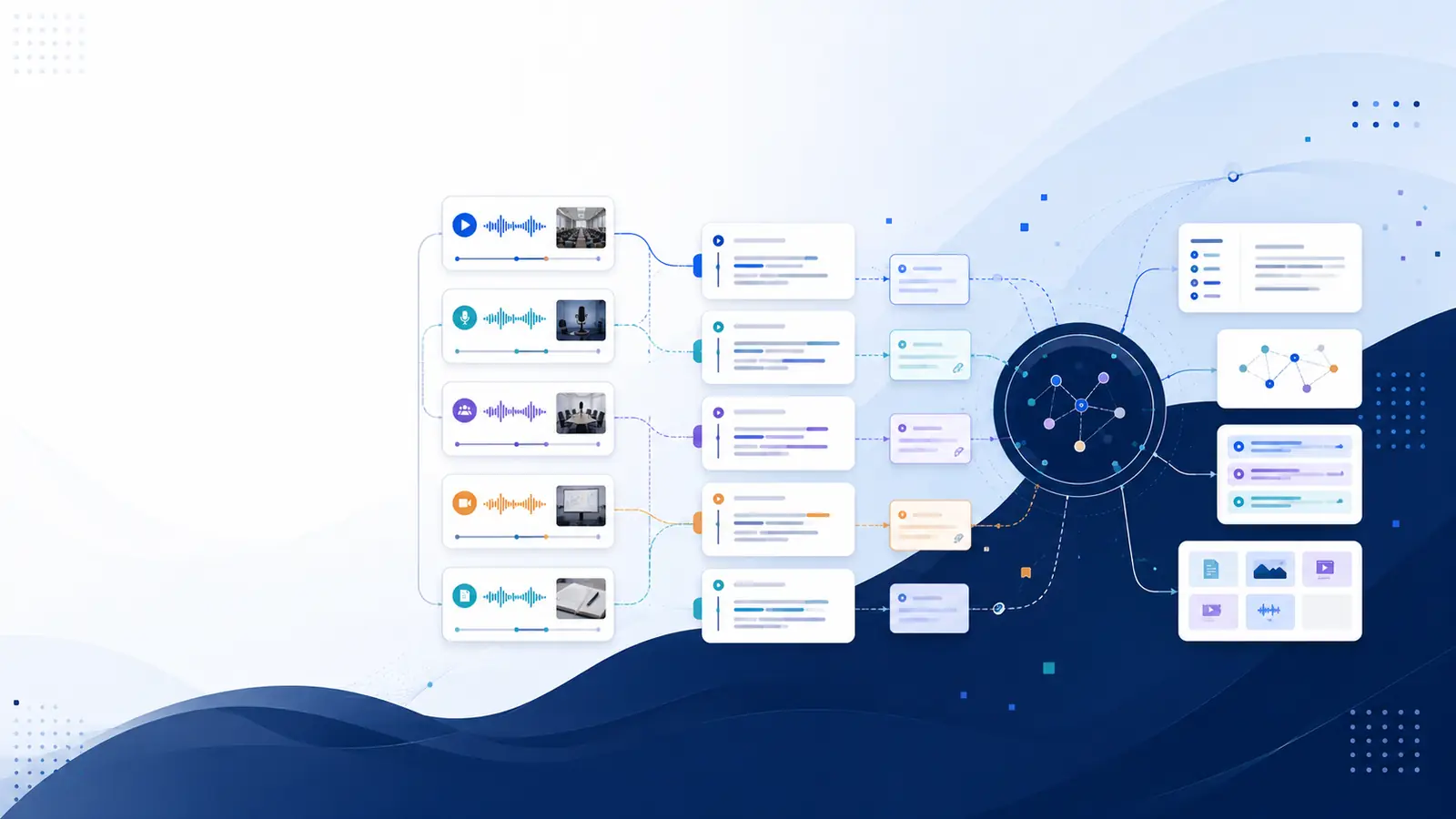
You watched a two-hour lecture last week. You understood it. You felt good about it. Then you needed one specific concept from it — and spent the next 25 minutes scrubbing through the entire video just to find it.
Sound familiar? You're not alone. Most people lose between 30–50% of what they learn from a video within 24 hours, and almost none of it is retrievable without rewatching. The problem isn't attention span — it's that video, by design, is a terrible format for storing and retrieving knowledge.
That's changing. A new generation of AI-powered tools is making it possible to actually use what you watch — not just consume it. This guide compares the 7 best options available right now, who each one is best for, and which one genuinely solves the rewatch problem at its root.
The goal isn't to watch more videos. It's to remember and use what you already watched.
What makes a video learning tool actually useful?
Before diving into the list, it's worth being clear about what these tools should do. There are two very different categories that often get confused:
Video creation tools (Synthesia, Loom, Pictory) — help you make videos. These are popular but irrelevant if your goal is to learn from videos that already exist.
Video knowledge tools — help you extract, search, and retain information from videos you watch. This is what this article covers.
The best tools in this category should offer: automatic transcription, semantic search (finding moments by meaning, not just keywords), AI-generated summaries, timestamped navigation, and ideally flashcards or Q&A for active recall.
Effective learning requires managing the cognitive load of a video. Tools that break long content into smaller, digestible segments help prevent information overload, allowing you to focus on specific concepts rather than trying to process an entire lecture at once. While some platforms focus on interactive elements like embedded quizzes to keep you engaged, others prioritize archival features that turn recordings into a searchable personal database.
Choosing between these approaches depends on whether you prefer active participation during the viewing process or building a structured reference library for later review. Both methods aim to improve retention, but they serve different study habits. Let's compare the top options available for these tasks.
Sources reviewed: teaching-resources.delta.ncsu.edu, pmc.ncbi.nlm.nih.gov.
The 7 best tools compared
Tool 01 — Editor's pick
Libraryminds
Best overall Free to try
Libraryminds is built specifically for one thing: turning videos into a searchable personal library. Drop in any video — a lecture, a tutorial, a research talk, a recorded meeting — and it generates a full transcript, timestamps, AI flashcards, and a Q&A interface that lets you ask questions about the video in plain English.
The key difference from other tools is semantic search. You don't need to remember the exact words used in the video. You can type "the part where they explained gradient descent using a ball rolling downhill" and Libraryminds finds that moment. For students, researchers, and professionals who consume a lot of video content, this fundamentally changes how that knowledge is usable over time.
It also supports team workspaces — useful for research groups or professional teams who share video resources and need everyone to be able to find the same moments without coordinating timestamps manually.
Strengths
Semantic search across full video
Auto flashcards + Q&A
Timestamped navigation
Team workspaces
API access
Free to start
Limitations
Early-stage product
Best for knowledge-dense videos
Tool 02
Otter.ai
Freemium
Otter.ai started as a meeting transcription tool and has expanded to cover more video formats. It does an excellent job of producing accurate, speaker-separated transcripts and lets you search through them. If your primary need is transcription with keyword search, Otter is reliable and widely adopted.
Where it falls short for deep learning is that it's built around meetings and conversations — not lectures or technical content. It lacks flashcard generation and its search is keyword-based rather than semantic, meaning you need to remember the exact words to find a moment.
Strengths
Excellent transcription accuracy
Speaker identification
Wide integrations (Zoom, Meet)
Limitations
Keyword search only
No flashcard or Q&A features
Optimized for meetings, not learning
Tool 03
Notion AI + manual timestamps
Paid
Many learners build their own system: watch the video, manually note timestamps in Notion, then use Notion AI to summarize their notes. It's flexible and integrates with existing workflows. The downside is obvious — it's labor-intensive. The timestamp accuracy is only as good as your manual notes, and there's no way to search the video itself.
This approach works reasonably well for people who already live in Notion, but it doesn't solve the core problem — it just moves it. You still have to rewatch to verify context.
Strengths
Highly flexible
Integrates with existing workflow
AI summarization
Limitations
Manual effort required
Cannot search the video itself
No auto flashcards
Tool 04
YouTube's built-in transcript
Free
YouTube generates automatic transcripts for most videos, accessible via the three-dot menu under any video. These are free, reasonably accurate, and allow basic Ctrl+F keyword search. For YouTube content specifically, this is a useful zero-cost option.
The limitations are significant, though. Transcripts are only available for YouTube-hosted content. They have no AI summarization, no flashcards, no semantic search, and no way to save or organize videos across a library. It's a starting point, not a system.
Strengths
Completely free
Available on most YouTube videos
Clickable timestamps
Limitations
YouTube only
No AI features
No search across multiple videos
Tool 05
Recall.ai (browser extension)
Freemium
Recall is a browser extension that saves and summarizes online content — including YouTube videos — into a personal knowledge base. It integrates with Notion and Obsidian, and generates summaries using AI. For people building a second brain, Recall is a solid addition to that workflow.
It's not purpose-built for deep video learning. Summaries are useful but surface-level, and there's no way to ask granular questions about the video content or generate flashcards from specific moments.
Strengths
Works inside the browser
Integrates with Notion, Obsidian
Builds a personal knowledge base
Limitations
Surface-level summaries
No granular Q&A on video content
Limited to supported sources
Tool 06
Descript
Paid
Descript is primarily a video editing tool — but it generates high-quality transcripts as a core part of its workflow. Editors use it to cut video by editing text. For content creators or researchers who also produce video, it serves double duty well.
For pure learning purposes, however, Descript is overbuilt and expensive. You're paying for a full editing suite when you only need the transcript layer. It's best suited for people who both consume and produce video content.
Strengths
Excellent transcript quality
Full video editing capabilities
Good for creators
Limitations
Expensive for learning-only use
No flashcard or Q&A features
Complex interface for simple needs
Tool 07
Anki + manual video notes
Free
Anki is the gold standard for spaced repetition flashcards. Many serious learners use it alongside video content by manually creating cards from what they watch. For medical students, language learners, and exam preppers, Anki's algorithm is unmatched for long-term retention.
The fundamental problem is the same as with Notion — it's fully manual. Creating good Anki cards from a two-hour video can take as long as watching it twice. It also has no connection to the source video, so context is easily lost.
Strengths
Best spaced repetition algorithm
Free and open source
Huge community and decks
Limitations
Fully manual card creation
No link back to video source
No video search
Which tool should you use?
The right choice depends on what you're trying to solve:
If you primarily watch YouTube — start with YouTube's built-in transcript. It's free and available instantly. Add Libraryminds when you want to search across multiple videos or generate flashcards.
If you record and attend a lot of meetings — Otter.ai handles this well, especially if you need speaker attribution and Zoom integration.
If you're a serious student building long-term knowledge — the combination of Libraryminds for search and extraction with Anki for spaced repetition is the most powerful setup available. Libraryminds handles the "find and understand" layer; Anki handles the "remember forever" layer.
If you want one tool that does everything — Libraryminds is the only option on this list that offers automatic transcription, semantic search, AI flashcards, and Q&A together in one place, with a free tier to start.
The real problem worth solving
Every tool on this list is better than nothing. But most of them are solving a narrow slice of the problem — transcription without search, or notes without the video context, or flashcards without automatic generation.
The real problem is that knowledge locked in video format is effectively inaccessible after you've watched it. You can't search it, you can't reference it, you can't build on it the way you would with a book or an article. Video is a consumption format masquerading as a learning format.
The tools that are making the biggest difference are the ones treating video as a knowledge source to be indexed — not just a file to be played. That's the shift worth paying attention to.
Frequently asked questions
Can I use these tools on any video, not just YouTube?
Most tools on this list work with YouTube. Libraryminds supports video uploads and links from multiple sources, making it more versatile for lectures, webinars, and research recordings that aren't on YouTube.
What is semantic search and why does it matter for videos?
Keyword search finds exact words. Semantic search understands meaning. So if a video says "the model learns by adjusting weights to minimize error," you can find that moment by searching "how does the model improve itself" — even though those words don't appear in the transcript. This is the difference between a search engine and a ctrl+F.
How long does it take to process a video?
With Libraryminds, a typical 60-minute video is processed and fully searchable within a few minutes. Transcription and flashcard generation happen automatically in the background.
Is Libraryminds free?
Yes — Libraryminds has a free tier you can try without a credit card. Visit libraryminds.com to get started.