AI Tools
How to Choose and Use a Video Transcription Tool
A video transcription tool converts speech in recordings into searchable, timestamped transcripts so you can find, verify, and reuse moments without rewatching. This guide explains what to look for, a step-by-step workflow, use-case examples, and a checklist to pick the right tool.
What a video transcription tool does and why it matters
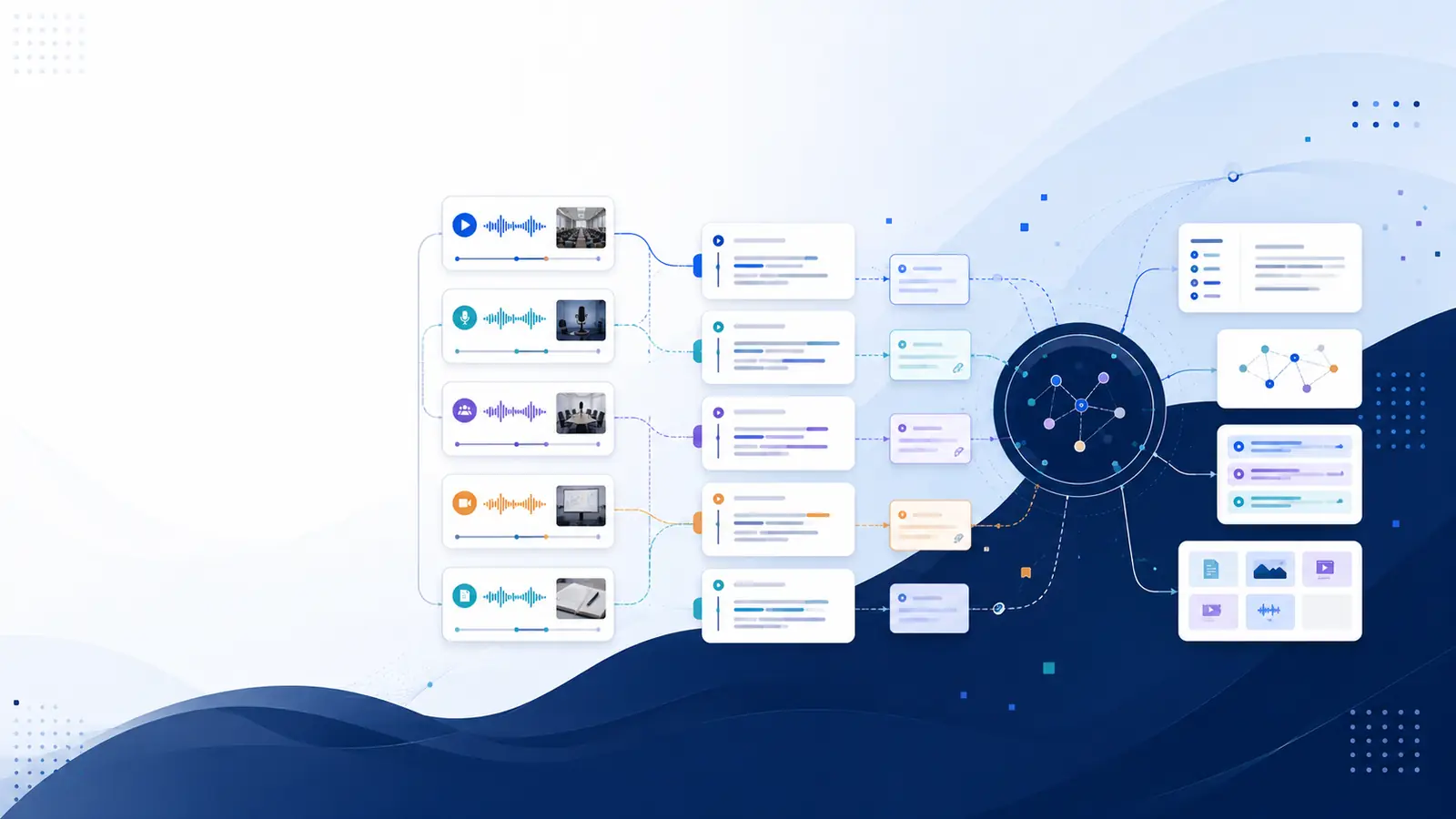
A video transcription tool converts spoken words from a recording into written text that you can read, search, and link back to exact moments in the video. That means you can find answers by searching phrases or meaning, jump directly to timestamps, and turn ephemeral spoken content into reusable documentation. If you work with lectures, meetings, interviews, or long tutorials, transcription saves significant time by removing the need to rewatch long segments when you only need a single fact, quote, or decision.
For a hands-on next step, try the free YouTube transcriber tool on the Libraryminds free tools page; it returns a timestamped transcript when captions are available and helps you see how timestamped transcripts improve navigation (/free-tools).
Key features to look for in a video transcription tool
Prioritize tools that produce timestamped transcript output, let you search across transcripts, and support speaker labels when you need them. Timestamped transcripts let you click a line of text and open the video at that exact moment, which stops timeline-scrubbing and speeds verification. Searchable transcripts include both keyword search and semantic search that finds meaning when you forget exact words.
Other useful features: automatic chaptering to split long files into navigable sections, export options in multiple transcript formats, and browser recording or URL import so you can add content quickly. If you plan to build a long-term library of recordings, check for structured knowledge features like AI summaries and flashcard generation to support review. Libraryminds provides searchable transcripts, timestamped transcript linking, and ai summaries as part of its core feature set; explore the full feature list at /features.
Step-by-step workflow: from raw video to searchable knowledge
Follow this workflow to make recordings useful rather than just archived files. Step one: capture or import the video — upload a file, paste a YouTube URL, or record directly in the browser. Step two: transcribe — run the transcription job and verify the transcript against the video for any important wording or domain terms. Step three: add metadata — label speaker names, add tags, and create a short title and description so future searches return the right file.
Step four: enrich — generate an AI summary and chapters if available, and add timestamps to action items, decisions, or quotes. Step five: export or share the segments you need for documentation, captions, or meeting notes. If you want an integrated workflow that supports importing videos, timestamped transcripts, and AI summaries, see how Libraryminds handles upload, transcription, and searchable results on the product overview page (/what-is-libraryminds).
Practical examples: how transcription fits daily tasks
Meeting minutes: after a call, search the transcript for phrases like "action" or a participant's name and jump to the exact timestamp to confirm who agreed to what. Learning: when studying a recorded lecture, ask for the chapter on a specific concept and review the AI summary to get the main points before rewatching any supporting clip. Content creation: pull accurate quotes and generate subtitles or blog drafts from transcript segments to cut editing time.
Journalists and researchers can tag interview answers to specific questions and export them for citation. Podcasters can auto-generate show notes and chapters for upload. Tools that offer flashcard generation help turn transcripts into revision material. Libraryminds supports flashcard generation from transcripts and Ask My Library for cross-video questions on Plus and higher plans; see plan details on the pricing page (/pricing).
Comparison checklist: pick the right video transcription tool
Use this checklist when comparing tools. Must-haves: timestamped transcripts, searchable output, reliable exports (TXT, SRT, VTT, Markdown). Nice-to-haves: speaker diarization, AI summaries, chapter markers, and semantic search that answers questions phrased in plain language. Integration points: browser extension, direct URL import for common audio/video formats, and API or webhooks if you need automation.
Evaluate accuracy by testing with a representative sample of your recordings — include background noise, overlapping speech, and domain-specific vocabulary. Check if the vendor provides speaker diarization and translation if you work across languages. Libraryminds lists features such as speaker diarization and translation on Plus and higher plans and offers exports in multiple formats; review how features map to plans on the pricing page (/pricing).
Implementation tips and governance for teams
Start with a pilot: transcribe a subset of meetings or lectures to build internal best practices for naming, tagging, and who can edit transcripts. Create templates for meeting notes that include transcript links and timestamps for action items. Train people to search transcripts by meaning, not just keywords, so results surface the right moments even when exact phrasing differs.
Set clear rules for sharing: decide which transcripts can be public and which remain private, and record who owns each recording's metadata. Automate ingestion where possible using URL imports or podcast RSS subscriptions to avoid manual upload work. Libraryminds supports podcast RSS subscriptions and public sharing features on Plus plans; see the podcast and sharing capabilities on the features page (/features).
Frequently asked questions
How accurate are automated transcripts?
Automated transcripts vary with audio quality, accents, background noise, and specialized vocabulary. Expect a near-complete verbatim transcript in clear recordings; review important quotations against the source and correct proper nouns or technical terms. Many tools include an editor for quick corrections after transcription.
Can I search across many videos at once?
Yes—choose a tool with library-wide search and semantic capabilities so you can search by meaning across all transcripts. Semantic search surfaces relevant moments even when you forget exact words. Confirm whether the tool offers background indexing for semantic search and how long that processing takes.
What formats can I export transcripts into?
Look for tools that export in subtitle and document formats such as TXT, SRT, VTT, Markdown, and Word. Exports let you repurpose text for captions, articles, or internal documentation. Verify whether exports preserve timestamps and speaker labels if those matter for your workflow.
How do I handle speaker identification?
If identifying who said what matters, choose a tool with speaker diarization that labels speakers in multi-person recordings. Some services include manual correction so you can assign names after a job completes. Confirm which plan level provides diarization if the vendor gates it by tier.
Can I get a quick transcript from YouTube videos?
Yes. Some services offer a YouTube video transcriber that retrieves caption tracks as timestamped text when a caption is available. That provides a fast way to get a searchable transcript without uploading files; check the provider's free tools to test this workflow (/free-tools).